Remote Desktop Gateway
Before You Begin
You need the following before you can connect remotely to your PC:
- Your work PC must be set up with Software Center (not Intune) and have Remote Desktop enabled.
- Your Massey account must be permitted to log in remotely to that PC.
- Microsoft Authenticator must be configured as your default MFA method - see Multi-Factor Authentication Setup below.
Username: username@massey.ac.nz
RD Gateway server: rdgateway.massey.ac.nz
How to Connect
Using Remote Desktop Connection (mstsc)
-
Press
Win + R, typemstscand press Enter to open Remote Desktop Connection. -
Click Show Options to expand the dialog.
-
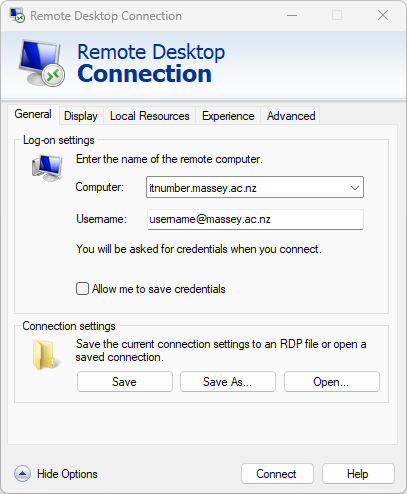
On the General tab, enter itnumber.massey.ac.nz as the computer name and username@massey.ac.nz as the username.
Show screenshot
-
Open the Advanced tab and click Settings under Connect from anywhere.
-
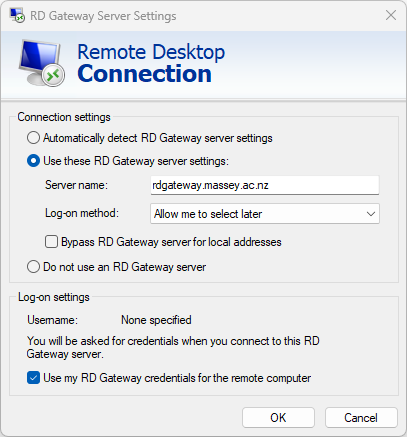
Configure the Gateway settings:
- Select Use these RD Gateway server settings and enter rdgateway.massey.ac.nz
- Untick Bypass RD Gateway server for local addresses
- Tick Use my RD Gateway credentials for the remote computer
Show screenshot
-
Click OK to close the Gateway settings. To save the connection for future use, return to the General tab and click Save As.
-
Click Connect. Accept any certificate prompt, then enter username@massey.ac.nz and your Massey password when asked.
-
Approve the Microsoft Authenticator push notification on your phone to complete sign-in.
Using Windows App (App Store)
-
Install Windows App from the Mac App Store (or Self Service if it is a Massey-managed Mac).
-
Open the app. On the PCs screen, click + → Add PC.
-
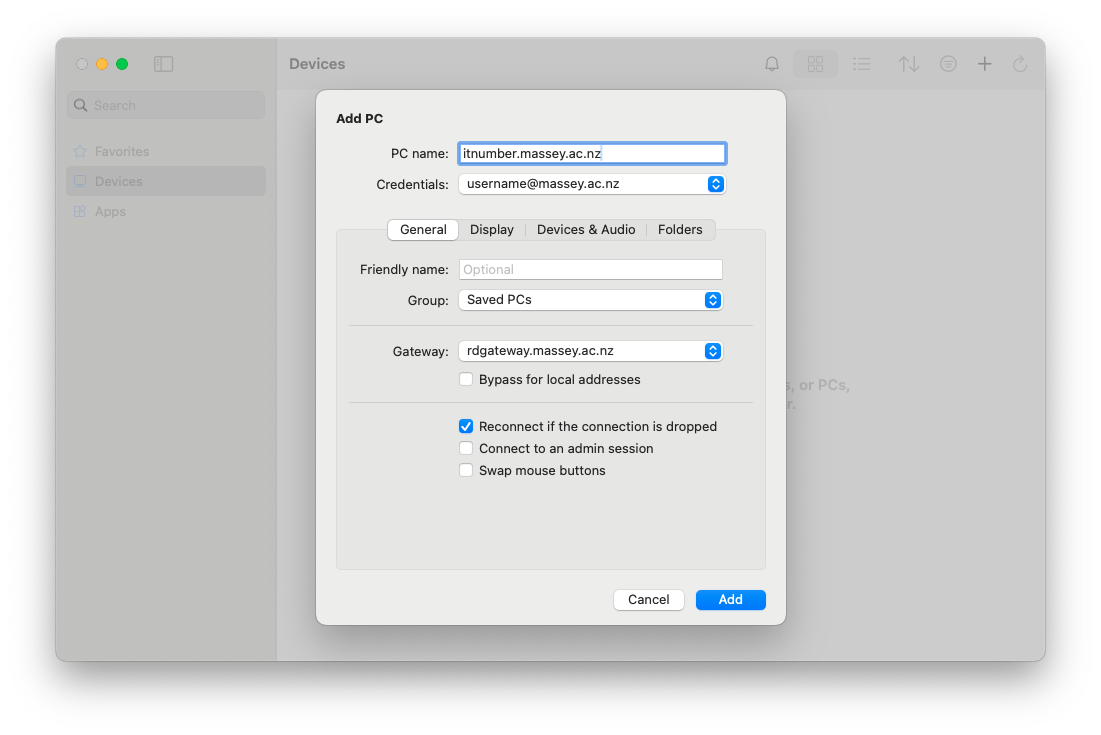
Enter itnumber.massey.ac.nz as the PC name. The friendly name is optional, leaving it as the IT asset number works well.
-
Under Credentials, choose Add user account. Enter your username as username@massey.ac.nz and your Massey password, then click Add.
Show screenshot
-
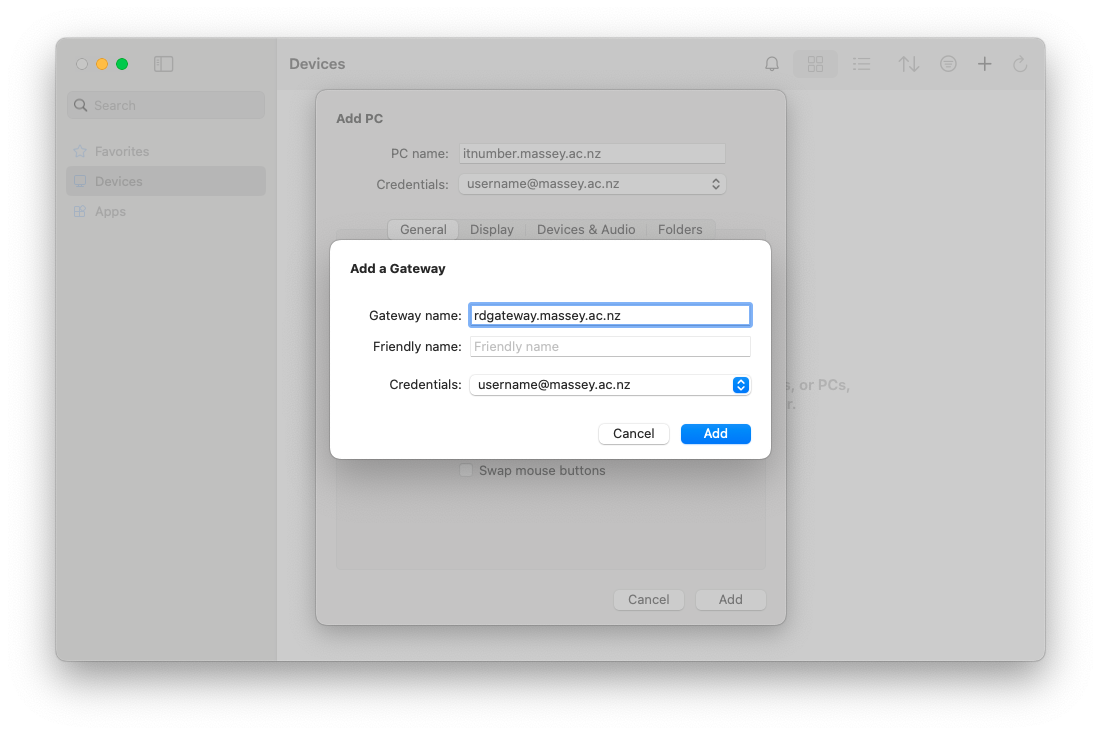
On the General tab, click the Gateway field and choose Add Gateway. In the dialog that appears:
- Enter rdgateway.massey.ac.nz as the gateway name
- Set Credentials to the user account you just created
Click Add to close the dialog, then untick Bypass for local addresses on the General tab.
Show screenshot
-
Use the Display, Devices & Audio, and Folders tabs to configure additional options as needed, then click Add to save the PC.
-
Double-click the PC tile to connect. Accept any certificate prompt. If prompted for credentials, enter username@massey.ac.nz and your Massey password.
-
Approve the Microsoft Authenticator push notification on your phone to complete sign-in.
Multi-Factor Authentication Setup
Remote Desktop Gateway uses Microsoft multi-factor authentication. Only Microsoft Authenticator push notifications are supported - SMS codes and phone calls will not work.
Step 1 - Access your MFA settings
-
Open a browser and go to mfasetup.massey.ac.nz.
-
Sign in with username@massey.ac.nz and your Massey password. This takes you to the Microsoft Security info page.
Step 2 - Add Microsoft Authenticator (if not already listed)
-
On the Security info page, click + Add sign-in method.
-
From the drop-down, select Authenticator app, then click Add.
-
Follow the on-screen steps. When prompted, open the Microsoft Authenticator app on your phone, tap the + icon → Add account → Work or school account → Scan a QR code, then scan the code shown on screen.
-
Enter the code shown on screen to verify the app, then click Next. Click Done when finished.
Step 3 - Set Microsoft Authenticator as your default
-
On the Security info page, click Change next to your current default sign-in method.
-
From the drop-down, select App based authentication - notification, then click Confirm.
-
Find the setting Sign-in method when most advisable is unavailable and set it to Microsoft Authenticator - notification.
Need Help?
If you cannot connect or need help setting up Microsoft Authenticator, contact the IT Service Desk.
Auckland: +64 9 414 0800
Palmerston North: +64 6 356 9099
Wellington: +64 4 801 5799
Submit a request to the IT Service Desk.
Or visit the full IT Services contact page.